If you’ve ever opened the Site Health screen in WordPress and seen the warning “Not all essential security headers are installed,” you’re in good company. It’s one of the most commonly failed items in the entire Site Health check, and for an annoying reason: WordPress core doesn’t ship those headers, most hosts don’t add them, and the documentation that does exist tends to assume you’re comfortable editing .htaccess, restarting Nginx, or writing Cloudflare transform rules.
For a lot of site owners, that warning just sits there. Forever. Not because they don’t care about security. They do. But because the gap between “I’d like an A on securityheaders.com” and “I’ve actually rolled out a working Content Security Policy without breaking my checkout page” turns out to be wider than the topic deserves.
This post is an attempt to close that gap. We’ll look at what security headers actually do (in plain language), why so many WordPress setups end up with broken, outdated, or theatrical configurations, and what a sensible long-term maintenance approach looks like. Full disclosure: toward the end, I’ll mention the plugin we built to handle this (Advanced Security Headers), but the bulk of what follows is just an honest discussion of the problem, with citations to the people writing about it.
- 1 TL;DR
- 2 What security headers really are (and what they aren’t)
- 3 The headers that matter in 2026
- 4 Why “just add the headers” is harder than it sounds on WordPress
- 5 What people are actually running into
- 6 Where most WordPress security-header efforts go off the rails
- 7 What a sane, low-friction approach looks like
- 8 A quick tour of how we tried to make this less painful
- 9 Frequently Asked Questions
- 10 How to purchase, install, and set up Advanced Security Headers
- 11 That’s It!
- 12 Further reading
TL;DR
If you are short on time:
Security headers are worth doing. They’re cheap, they harden real attack surfaces, and the five non-CSP headers are basically free wins. Add them today, in one place, and verify the result at securityheaders.com or with curl -I yourdomain.com. Don’t add Expect-CT. Be careful with X-XSS-Protection. Set HSTS only after HTTPS is fully working everywhere, because, as Forestal Security puts it, “only enable HSTS if your site already uses HTTPS”. Locking visitors into HTTPS before HTTPS works can be a self-inflicted outage.
CSP is the one that earns its keep, and it’s also the one that requires real maintenance. Start in report-only mode. Collect the reports somewhere you’ll actually look. Add real origins instead of wildcards. Then flip to enforcement and keep monitoring, because your site will keep changing.
If you’d rather not assemble all of that yourself, i.e., the reporting endpoint, the per-directive editing, the drift detection, the audit history, the dev-vs-prod handling, that’s exactly what we built Advanced Security Headers to handle. If you’d rather build it yourself, the articles cited throughout this post are good starting points, and we have no objection to that path either. The thing we care about is that more WordPress sites end up with header configurations that are actually correct and actually maintained, instead of the current state of affairs, which, as Plugin Vulnerabilities documented at length, is a lot of plugins confidently shipping headers that the browsers stopped reading years ago.
Whichever route you take: get the five easy ones in place today, and pick a date in the next two weeks to start your CSP report-only rollout. That alone will put your site ahead of most of the WordPress install base on this particular axis. And the next time Site Health shows you that warning, you’ll be able to dismiss it for the right reason.
What security headers really are (and what they aren’t)
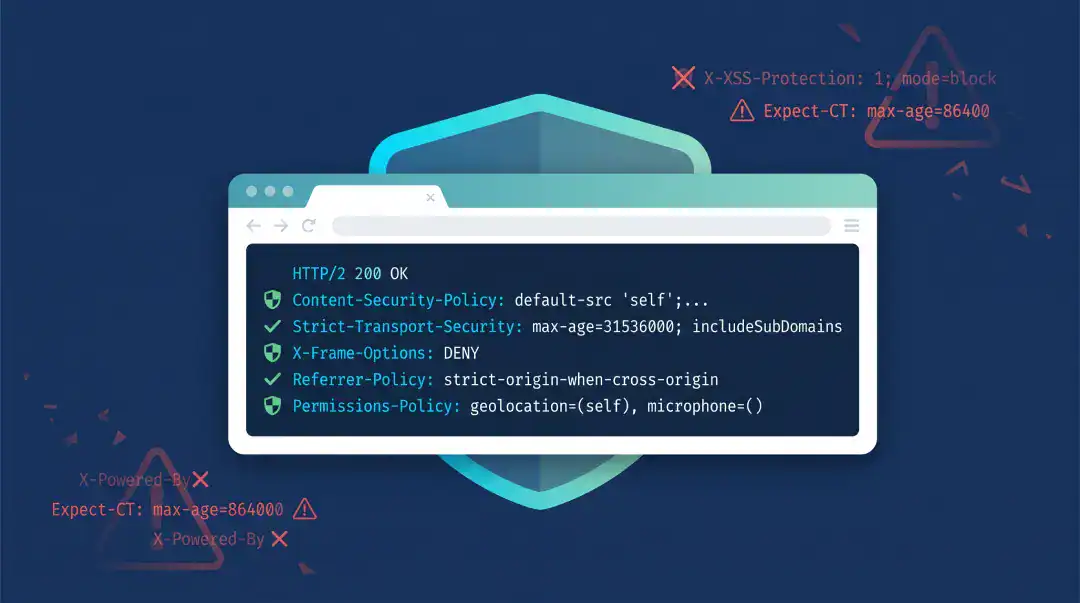
Strip away the jargon, and security headers are just instructions your server sends to a visitor’s browser along with every page. They say things like “don’t let other sites embed me in an iframe,” “only load scripts from these specific domains,” and “always use secure HTTPS, even if someone types http:// by mistake.” The browser reads those instructions and adjusts its behavior accordingly.
ThatWare describes them well: “security header policies are instructions sent by a web server to a web browser. These instructions are embedded within HTTP response headers and act like invisible gatekeepers. They tell the browser how to behave when handling the site’s content.”
That framing is helpful because it also explains what headers can’t do. They don’t patch vulnerabilities. They don’t stop an attacker from running their tools. As the team at Plugin Vulnerabilities bluntly put it, “headers tell web browsers to do or not do things. They don’t stop an attacker from taking actions, since they can just ignore them. They can only stop a victim from being exploited.”
That’s a fair and important caveat. Headers aren’t a silver bullet. What they are is a cheap, durable layer in a defense-in-depth strategy. The kind of thing that, when configured correctly, neutralizes entire classes of attack at the browser level before any of your application code has to think about them. For example, a successful XSS injection is much less dangerous on a site with a tight Content Security Policy than on one without. A clickjacking attempt simply doesn’t render against a properly set X-Frame-Options. None of that replaces patching, but all of it reduces blast radius.
So the goal isn’t to chase a grade. It’s to make the cheap layer actually work.
The headers that matter in 2026
Pretty much every up-to-date guide on this topic converges on the same short list. InspectWP, in their February 2026 walkthrough, lays it out cleanly:
- X-Frame-Options: SAMEORIGIN — “prevents your site from being loaded inside an iframe on another domain. This stops clickjacking attacks where a malicious site overlays invisible buttons on top of your page.”
- X-Content-Type-Options: nosniff — “stops browsers from guessing the MIME type of a file. Without this, an attacker could upload a file that looks like an image but contains JavaScript, and the browser might execute it.”
- Referrer-Policy: strict-origin-when-cross-origin — controls how much URL information leaks to other sites when a visitor clicks a link.
- Permissions-Policy — “disables browser features your site does not use. The empty parentheses mean ‘nobody is allowed to use this feature,’ which prevents malicious scripts from accessing the camera, microphone, or location.”
- Strict-Transport-Security (HSTS) — “forces browsers to always use HTTPS.”
- Content-Security-Policy (CSP) — “the most powerful (and complex) security header.”
That last one, CSP, is where the entire conversation gets serious, because it’s also where most WordPress sites give up. And you’ll never realize it until you look for it.
There’s also an older header, X-XSS-Protection, that you’ll still see recommended in a lot of tutorials and even in some Site Health remediation guides. It’s worth being precise here: modern browsers have moved on from it, and in certain edge cases, it can actively make things worse. Mozilla’s own warning, quoted in Plugin Vulnerabilities’ breakdown of header-related plugin claims, is that “in some cases, X-XSS-Protection can create XSS vulnerabilities in otherwise safe websites.” Chrome removed support for it in October 2019. Firefox never supported it at all.
You can still send it. It doesn’t hurt against legacy browsers, but anyone selling it as serious modern protection is selling you a relic. The real work today is in CSP, HSTS, and frame-ancestors.
Why “just add the headers” is harder than it sounds on WordPress
Every guide on this topic eventually arrives at a code block like this one from InspectWP:
<IfModule mod_headers.c>

    Header always set X-Frame-Options "SAMEORIGIN"

    Header always set X-Content-Type-Options "nosniff"

    Header always set Referrer-Policy "strict-origin-when-cross-origin"

    Header always set Permissions-Policy "camera=(), microphone=(), geolocation=(), payment=()"

    Header always set Strict-Transport-Security "max-age=31536000; includeSubDomains"

</IfModule>
Paste that into .htaccess, reload the page, and yes. Congratulations! You’ve added five of the six essential headers. For five of them, that’s basically the whole job. They don’t change, they don’t need tuning, and once they’re there, you can mostly forget about them.
The trouble is that the useful part of header security isn’t in those five. It’s in CSP. And CSP is where the static-snippet approach falls apart.
A real WordPress site loads scripts and styles and fonts and images and tracking pixels and iframes from dozens of places. Your theme. Your page builder. A handful of plugins. Google Fonts. Google Analytics or whatever replaced it this year. Stripe or PayPal on checkout pages. YouTube embeds in old blog posts. A live chat widget in the corner. Whatever the marketing team plugged in last week without telling you.
The right CSP for your site is the one that allows exactly those resources and blocks everything else. The wrong CSP is either too loose to provide protection or too tight and visibly breaks the site. There is no static config snippet that lands in the middle, because the middle is specific to your site, and your site changes.
That’s the thing the existing guides tend to gloss over. They’re correct, they just stop one step short of useful. The headers go in; the maintenance burden lands on you.
What people are actually running into
If you spend a few minutes reading current articles from people who fix this stuff for a living, the same set of pain points keeps showing up.
C. Simmons describes the very common starting point, the Site Health report, and walks through configuring six headers entirely at the Cloudflare edge using Response Header Transform Rules. That works, and for a lot of small sites it’s a perfectly reasonable approach. But it also moves the problem off WordPress entirely, which means your config lives somewhere your client or successor probably can’t find, and there’s no in-WP visibility into whether the policy is actually being honored.
Forestal Security’s November 2025 guide walks through nine headers in admirable depth and lands on the right summary: “It is possible to manage these settings by editing server files such as .htaccess, but that can be risky if you are not comfortable with coding.” That’s a polite way of saying that one typo in .htaccess can take a production site offline.
InspectWP names the security header maintenance trap explicitly: “if the plugin is deactivated, updated with a bug, or removed, your security headers disappear instantly. For production sites, server-level configuration is more reliable because it does not depend on WordPress or any plugin being active.” That’s a real concern. A header config that vanishes silently is arguably worse than no config at all, because you stop paying attention to it.
And ThatWare touches on the wildcard trap that’s bitten many site owners: “Using * in header values — like script-src * in CSP — defeats the purpose. Be explicit with trusted domains.” That advice is correct, and it’s also exactly the corner most people back themselves into. You hit one resource that gets blocked, you can’t figure out why, the deadline is now, you slap a wildcard in there, and you forget you ever did it. Six months later, your CSP is a wildcard buffet, and the protection it pretends to provide is mostly cosmetic.
Then there’s the harshest piece of the picture, from Plugin Vulnerabilities: a lot of the WordPress security-header plugins currently in the directory, including some with hundreds of thousands of active installs, are still adding headers like Expect-CT that browsers have removed support for, and X-XSS-Protection in ways that current guidance specifically warns against. Their post calls out plugins “with 100,000+, 70,000+ installs, and 50,000+ installs… still promoting the Expect-CT header despite it not serving a purpose at this point.”
This is the security-theater problem. A green checkmark in your admin doesn’t tell you whether the headers are still the right ones. The web platform moves; static configs don’t.
Where most WordPress security-header efforts go off the rails
Pulling these threads together, almost every failure I see in the wild falls into one of five patterns. None of them is exotic. Most of them are completely understandable reactions to genuinely awkward tooling.
The first pattern is paste-and-pray. Someone finds an .htaccess snippet on a blog, pastes it in, the Site Health warning goes away, and the project gets closed out. Three months later, a plugin update changes what scripts load, CSP starts blocking something legitimate, and nobody on the team remembers where the policy came from or how to update it. The site doesn’t crash. It just slowly accumulates broken third-party features that everyone shrugs at.
The second is wildcard creep. This is the predictable consequence of pattern one. To make the site work, somebody adds ‘unsafe-inline’, then https:, then *, until the CSP technically exists but enforces almost nothing. The site looks secure on paper, scores well on automated checks, and is in practice running a permissive policy that wouldn’t have caught the XSS that the policy was supposed to be there to mitigate.
The third is jumping straight to enforcement. CSP has two modes: report-only and enforcing. The right way to roll it out is report-only first, so the browser reports what would be blocked without actually blocking anything, you watch the reports come in for a week or two, you tune the policy, and then you flip to enforcement. ThatWare specifically calls this out: “Start in Report-Only mode, especially with Content-Security-Policy (CSP). This helps test policies without breaking your site.”
In practice, almost nobody does this, because almost nobody has anywhere to actually collect and read the reports. Browsers will dutifully POST violation reports to a report-uri endpoint, but if you don’t have an endpoint set up, those reports go nowhere and you’re flying blind. So people skip the careful version and just write a policy from intuition.
The fourth is shipping headers from the wrong place. A surprising number of WordPress sites end up with security headers added at both the server level and through a plugin and sometimes also at the CDN. InspectWP warns about exactly this: “If you see duplicate headers in your response (e.g., two X-Frame-Options lines), this can cause unpredictable browser behavior. Make sure each header is set in only one place: either on your origin server or at the CDN level, not both.”
The fifth is treating it like a one-time job. Sites grow. Plugins get added. New third-party services get embedded. The CSP that was perfect at launch is incomplete six months later. There is no version of “set it and forget it” that actually works for CSP, and pretending otherwise is the most common failure mode of all.
What a sane, low-friction approach looks like
Boiled down to the bare minimum, a good security-header workflow needs to do four things:
- Set the five “easy” headers safely, in one place, with sensible defaults, and ideally without ever asking you to think about MIME types or referrer policy taxonomy. These rarely change and rarely break things.
- Collect CSP violation reports somewhere you can actually look at them. Ideally, inside WordPress, so the data is right next to where you’re making the policy decisions. This is the single biggest difference between a CSP that hardens your site and a CSP that’s cosmetic.
- Make adding legitimate resources to your policy a one-click action rather than a string-editing exercise. When a real font, real CDN, or real payment domain shows up in your reports, adding it should not involve regex.
- Watch the configuration over time. Alert you if your headers stop being served (because a plugin update wiped them, or because a config drifted, or because someone enabled a CDN that strips them), and snapshot known-good states so you can roll back.
If you have those four capabilities, the rest of the header security gets a lot more boring. Boring is what you want.
That’s also, more or less, the design brief we wrote for ourselves when we built Advanced Security Headers. It’s not the only way to get there. You can build a reasonable equivalent with Cloudflare transform rules, a self-hosted reporting endpoint, and some patience. But it’s the way that lives inside WordPress, where the people maintaining most of these sites already are.
A quick tour of how we tried to make this less painful
I’ll be brief, because this isn’t supposed to be a pitch, and you can read the feature breakdown on the product page if you want the full picture. But a few specifics are worth calling out, because they map directly to the five failure modes above.
For the paste-and-pray problem, there’s a Setup Wizard on first install that turns on the five non-CSP headers with current, sensible defaults. There’s no copying snippets from a five-year-old Stack Overflow answer that still recommends Expect-CT. The Configure Headers tab also includes an “Apply Recommended Security Settings” button so the defaults can be re-applied any time, and a per-header status table on the Overview tab so you can see at a glance which headers are actually being detected on your live responses.
For wildcard creep, the plugin’s CSP report dashboard surfaces real violations from real visitors and lets you add the specific blocked origin to the right directive in one click. The intent is to make the precise answer easier than the wildcard answer, which is the only way to consistently avoid the wildcard answer.
For the report-only problem, the one where nobody actually has a place to collect reports, the plugin runs a CSP reporting endpoint inside WordPress out of the box. You enable Report-Only mode, you go about your day, violations show up in a dashboard you’ll actually open, and when the noise stabilizes, you flip the switch to enforcement. The user guide walks through this as a four-phase rollout: learning, review, stabilization, and then enforcement, with concrete signals for when to move to the next phase.
There’s also a fair amount of work behind the scenes that you mostly won’t notice but that exists because we ran into the problem ourselves: automatic detection of browser-extension violations (so a visitor’s Grammarly install doesn’t fill your dashboard with noise), private-network injection detection (so when somebody’s ISP-managed router tries to frame your site, the plugin correctly classifies it as “not your problem to fix”), DNS-filter block-page detection, and scanner/pentest payload rejection (so when you run a Burp Suite scan, the synthetic payloads don’t pollute your real reports).
For the duplicate headers and configuration-drift problems, the Audits tab runs a scheduled external check that fetches your own site from the public internet, parses the response headers, scores them, and emails you if something regresses. For example, if a plugin update or a CDN setting starts stripping your CSP. It also keeps a history of configuration snapshots so you can compare what’s running today against what was running last month, and restore an older state if needed.
For the “shipping from the wrong place” problem, the Export/Import tab can generate the equivalent Nginx, Apache, Caddy, or IIS configuration as plain text, so if you eventually decide to push the headers down to the web server layer for performance or reliability reasons, you can, and you can disable the plugin’s output to avoid duplicates. The point is to give you a clean migration path rather than locking the config to the plugin forever.
None of this is rocket science. It’s mostly the result of having lived through every one of those five failure modes ourselves on client sites and deciding to build the tool we wished had existed at the time.
Frequently Asked Questions
No. WordPress core ships almost no security-related response headers out of the box, and most managed hosts don’t add them either. That’s the main reason the Site Health screen flags the issue on so many otherwise well-maintained sites — the responsibility for setting these headers falls to the site owner, the theme, a plugin, the web server config, or the CDN, and in a lot of installs the answer ends up being “none of the above.”
Most of the other headers (X-Frame-Options, X-Content-Type-Options, Referrer-Policy, Permissions-Policy, Strict-Transport-Security) are essentially one-line policies you set once and forget. Their values rarely need to change. Content-Security-Policy is different: it has to explicitly list every domain your site is allowed to load resources from. Add a new payment processor, a new analytics tool, or a new embedded video provider, and your CSP needs to be updated to match. That’s why CSP needs ongoing maintenance and the others don’t.
The five non-CSP headers almost never break anything on a normal WordPress site. CSP, on the other hand, absolutely can — that’s its whole job. If you enable a strict CSP in enforcing mode without knowing which resources your site loads, you’ll likely see broken fonts, missing analytics, blocked payment widgets, or non-functional embeds. The correct rollout is to run CSP in report-only mode first, collect violation data for a week or two, add the legitimate origins to your policy, and only then switch to enforcement.
WordPress Site Health checks for six headers: Strict-Transport-Security, X-Content-Type-Options, Referrer-Policy, X-Frame-Options, Content-Security-Policy (or X-XSS-Protection as a fallback for older configurations), and a few related values. If any are missing on your live response, you get the warning. The check is purely about presence — it doesn’t evaluate whether the values you’ve set are sensible, current, or actually protecting anything.
Each option has trade-offs. Editing .htaccess or your Nginx config is the most reliable because it doesn’t depend on WordPress being up, but a typo can take the site offline and it’s invisible to non-technical maintainers. A plugin keeps the configuration discoverable inside WordPress and makes per-directive editing easy, but the headers disappear if the plugin is deactivated. A CDN like Cloudflare can inject headers at the edge with zero impact on your origin, but the configuration lives outside WordPress where it’s easy to forget about. The one rule that matters: pick one location and stick with it. Sending the same header from two layers can produce duplicates and unpredictable browser behavior.
Not really. Chrome removed support for it in 2019, Firefox never supported it, and Mozilla’s own guidance warns that in some cases it can introduce vulnerabilities rather than prevent them. There’s no harm in sending it for the small number of legacy browsers that still respect it, but it should not be the centerpiece of any modern security-headers strategy. Plugins that lead with X-XSS-Protection as a primary feature are working from advice that’s roughly half a decade out of date.
Expect-CT is deprecated and modern browsers no longer enforce it. Certificate Transparency is now handled automatically by browsers without needing a header. If you see a security plugin still adding Expect-CT in 2026, that’s a signal the plugin’s defaults haven’t been audited in a long time.
Roughly every time your site changes what it loads. New plugin that pulls in a third-party script? Update the CSP. New embedded service from marketing? Update the CSP. Theme switch? Probably a full review. The mechanical answer is “whenever a violation report shows up for something legitimate” — which is why a working reporting endpoint matters far more than the initial policy itself.
Only after your site is fully on HTTPS and you’re confident every subdomain you care about supports it. HSTS instructs browsers to refuse the HTTP version of your site for a specified duration, which means if anything on your site is still served over HTTP, those visitors will be locked out until the policy expires. Start with a short max-age (a few hours or a day), confirm nothing breaks, then raise it to a year. Don’t add preload until you’ve run with a full-year max-age for at least a few weeks without issues.
Indirectly, at most. Google doesn’t use header presence as a direct ranking signal, but HTTPS is a signal, and a site that’s been hijacked, defaced, or used to distribute malware will get penalized fast. Headers reduce the likelihood of those outcomes by mitigating XSS, clickjacking, and mixed-content issues. Think of them as ranking insurance rather than a ranking boost.
Three quick ways. Run curl -I https://yourdomain.com from a terminal and read the response headers directly — this is the most honest test because it shows exactly what browsers see. Visit securityheaders.com and run a scan on your URL for a graded report. Or open your browser’s developer tools, go to the Network tab, reload the page, click the document request, and look at the Response Headers section. If a header you configured isn’t appearing in any of those three places, it isn’t being applied — regardless of what your plugin’s settings page claims.
The five non-CSP headers, mostly yes — sensible defaults transfer well. CSP, no. Every site loads a different mix of fonts, scripts, embeds, and third-party services, so a policy that works perfectly on one site will block legitimate resources on another. Tools that let you export and import a baseline configuration are useful, but you should expect to tune the CSP on each site individually based on its actual reporting data.
How to purchase, install, and set up Advanced Security Headers
If everything above has convinced you it’s worth letting a tool handle the maintenance side of this, here’s the end-to-end walkthrough — from purchase to a working, monitored configuration. The whole process takes about ten minutes, and most of that is waiting for your first batch of CSP violation reports to roll in.
- Step 1: Purchase and download
Head over to the Advanced Security Headers page and choose the license that fits your situation — single-site, agency, or enterprise. Checkout takes a minute or two, and immediately afterward, you’ll receive two things:
– A confirmation email with your license key and a direct link to download the plugin zip file
– Access to your account dashboard on webidextrous.com, where the zip file and your license key are always available for re-download
Save the zip somewhere you can find it. You won’t unzip it manually — WordPress handles that for you during installation. - Step 2: Install the plugin in WordPress
Inside your WordPress admin:
1. Go to Plugins → Add New in the left sidebar
2. Click the Upload Plugin button near the top of the page
3. Choose the zip file you downloaded and click Install Now
4. When installation finishes, click Activate Plugin
A new Security Headers menu item will appear in the sidebar. That’s the plugin’s home base. - Step 3: Activate your license
Open and scroll to the bottom of Security Headers → Settings and paste your license key into the License Key field, then click Activate. Activation is what unlocks updates, audit emails, and any future feature additions — the plugin will function without an active license, but you won’t receive updates, which, on a security plugin, is something you genuinely don’t want to skip.
- Step 4: Run the Setup Wizard
The first time you open the plugin, a Quick Setup card appears on the Overview tab. Click Start Wizard and walk through the four steps. The whole thing takes less than two minutes:
– Basic Headers — applies sensible, current defaults for the five non-CSP headers (X-Frame-Options, X-Content-Type-Options, Referrer-Policy, Permissions-Policy, Strict-Transport-Security). These are the easy wins that almost never break anything.
– Content Security Policy — choose to start CSP in Report-Only (Learning) mode, or skip CSP for now if you’d rather come back to it. Report-Only mode is the right answer for almost every site. It logs violations without blocking anything, so your site keeps working normally while the plugin gathers data.
– Notifications — optionally enter an email address to receive alerts when CSP violations spike or when an audit detects that your headers have stopped being served.
– Summary — review what’s about to be applied, then click Apply Settings.
If you skipped the wizard or want to re-run it later, it’s always available under Security Headers → Setup Wizard (Re-run). It will never overwrite manual changes you’ve already made. - Step 5: Confirm headers are actually being served
This is the step most setup guides skip, and it’s the one that prevents the most “but my plugin says it’s working” headaches later. You want to verify with your own eyes that the headers are reaching the browser.
The fastest way is to open the Overview tab and look at the Header Status table. Each configured header should show a green check and the value currently being served on your live site. If something shows a red X, the plugin is detecting that the header isn’t reaching the response — usually because a caching layer or CDN is stripping it, in which case the Diagnostics tab will tell you where to look.
You can also confirm externally:
– Runcurl -I https://yourdomain.comfrom a terminal
– Or scan your URL at securityheaders.com
– Or open your browser’s dev tools → Network tab → click the document request → Response Headers
All three should show your new headers. If they do, you’re done with the setup phase. - Step 6: Let CSP collect data for a week or two
This is the part that requires patience rather than work. With CSP in Report-Only mode, the plugin’s built-in WordPress reporting endpoint will start receiving violation reports from every real visitor that loads your site. You don’t have to do anything — just live your normal life and let the dashboard fill up.
While you wait, it helps to manually visit the pages of your site that you’d want to confirm work correctly: the homepage, a typical blog post, the contact form, the checkout flow, the account/login area, and anywhere you’ve embedded third-party content (videos, maps, chat widgets, payment forms). The more page types that get hit during the learning window, the more complete your data will be.
A week is usually enough for a small site; busier sites can move faster. The signal you’re looking for is that new unique violations have slowed to a trickle — most new reports are duplicates of ones you’ve already seen, or are clearly coming from browser extensions rather than your actual site. - Step 7: Review and approve legitimate resources
Open the CSP Reports tab. You’ll see a list of every violation, grouped intelligently so that ten thousand reports from “the same blocked Google Fonts URL” show up as one entry rather than ten thousand.
For each entry:
– If it’s a service you recognize and want to keep (Stripe, Google Fonts, your analytics provider, your CDN, etc.), select it and click Add Selected. The plugin adds it to the correct CSP directive automatically.
– If it’s clearly noise — browser extensions, scanner traffic, weird DNS-filter block pages — mark it as Processed so it stops cluttering the view. The plugin already auto-classifies most of this category, but the manual control is there if you want it.
– If you don’t recognize the domain, leave it alone for now and look it up. If it turns out to be malicious, you’ve just learned something useful about your site that you wouldn’t have learned otherwise.
If you’d rather not pick through reports manually, the Apply All button does intelligent consolidation across the entire report set — collapsing similar subdomains into wildcards where appropriate and adding everything legitimate in one pass. - Step 8: Switch CSP from Report-Only to Enforcing
Once new violations have stabilized and your CSP includes every resource your site legitimately needs, you’re ready to flip the switch:
1. Go to Configure Headers → Content Security Policy
2. Uncheck Enable Report-Only Mode
3. Save
The browser will now actively block any resource that isn’t in your policy. The Overview tab’s mode badge will change from REPORT-ONLY to ENFORCING, and the protection becomes real. - Step 9: Turn on Audits and forget about it
The last thing worth doing is enabling scheduled audits under the Audits tab. This runs a periodic external check — the plugin fetches your own site from the public internet, parses the response headers, scores them, and emails you if something regresses. If a plugin update or CDN change ever silently strips your headers, you’ll know within a day rather than discovering it three months later from a customer complaint.
The Audits tab also keeps configuration snapshots, so if a change you make breaks something, you can restore the previous known-good state with one click.
That’s It!
From here on, the only ongoing task is occasional CSP report review when you add new third-party services to your site — a five-minute task you’d be doing anyway in any responsible setup. If you’d like to push your final configuration down to the server level (Nginx, Apache, Caddy, or IIS) for performance reasons, the Export/Import tab generates the equivalent config block as plain text you can paste directly into your server files.
For deeper detail on any step — including how to handle edge cases like dev-vs-prod environments, multisite installations, or running behind a CDN that does its own header injection — check the Documentation tab inside the plugin itself.
Further reading
Plugin Vulnerabilities — “WordPress Security Header Plugins Still Claiming to Provide Protection With Headers That Web Browsers Long Ago Stopped Supporting” — https://www.pluginvulnerabilities.com/2025/01/15/wordpress-security-header-plugins-still-claiming-to-provide-protection-with-headers-that-web-browsers-long-ago-stopped-supporting/
Forestal Security — “Security Headers Explained for WordPress” — https://forestalsecurity.com/wordpress-security-headers/
ThatWare — “SEO Solutions For The Missing Security Header Policies Issue” — https://thatware.co/missing-security-header-policies-issue-solutions/
InspectWP — “How to Add Missing Security Headers in WordPress” — https://inspectwp.com/en/knowledge-base/how-to-add-missing-security-headers-wordpress
C. Simmons — “WordPress Site Health Security Headers Issue” — https://csimmons.dev/blog/2026/01/wordpress-site-health-security-headers-issue/